I still remember the days when I felt like I was drowning in a sea of repetitive tasks, wasting hours on mundane activities that took away from my core focus. That was until I discovered the power of using ifttt for personal productivity. It’s amazing how a simple tool can revolutionize the way you work, automating tasks and freeing up time for what really matters. I was skeptical at first, but once I started streamlining my workflow with ifttt, I noticed a significant boost in my productivity and overall job satisfaction.
In this article, I’ll share my personal experience and expertise on using ifttt for personal productivity, providing you with practical tips and tricks to get the most out of this powerful tool. You’ll learn how to automate repetitive tasks, integrate ifttt with other apps, and optimize your workflow for maximum efficiency. My goal is to help you work smarter, not harder, and unlock your full potential. By the end of this guide, you’ll be equipped with the knowledge and skills to supercharge your productivity and take your business or career to the next level.
Table of Contents
- Guide Overview: What You'll Need
- Step-by-Step Instructions
- Using Ifttt for Personal Productivity
- Automating Routine Tasks With Ifttt Recipes
- Integrating Ifttt With Google Calendar for Time Management
- 5 IFTTT Hacks to Supercharge Your Personal Productivity
- Key Takeaways for Boosting Personal Productivity with IFTTT
- Unlocking Productivity Power
- Unlocking Your Full Potential with IFTTT
- Frequently Asked Questions
Guide Overview: What You'll Need

Total Time: 1 hour 15 minutes
Estimated Cost: free – $10
Difficulty Level: Easy
Tools Required
- Computer or Mobile Device with internet connection
Supplies & Materials
- ifttt Account sign up for free at ifttt.com
Step-by-Step Instructions
- 1. First, let’s get started with the basics: to use ifttt for personal productivity, you need to sign up for an account on the ifttt website. It’s a straightforward process that requires only your email address and a password. Once you’ve signed up, you’ll be taken to the ifttt dashboard, where you can start creating your own applets.
- 2. Next, you need to understand the concept of triggers and actions on ifttt. A trigger is an event that sets off an action – for example, receiving an email from a specific sender. An action is the task that is performed as a result of the trigger – such as saving an attachment from that email to your Google Drive. You can browse the ifttt library to find pre-made applets that combine common triggers and actions, or you can create your own custom applets using the ifttt platform.
- 3. Now, let’s create a custom applet to automate a repetitive task. For instance, you can create an applet that sends you a daily reminder to review your schedule for the day. To do this, you’ll need to click on the “New Applet” button on the ifttt dashboard, then select the trigger (in this case, a daily reminder at a specific time). Next, you’ll need to choose the action – such as sending a notification to your phone or email.
- 4. One of the most powerful features of ifttt is its ability to integrate with other smart devices and services. For example, you can create an applet that turns on your smart lights when you enter a specific room, or one that sends a notification to your phone when your favorite coffee shop has a new promotion. To integrate ifttt with other devices and services, you’ll need to connect them to your ifttt account using the “Services” tab on the dashboard.
- 5. To take your ifttt game to the next level, you can use the ifttt API to create custom applets that integrate with other software and services. This requires some programming knowledge, but it allows you to automate complex tasks and workflows that would be difficult or impossible to achieve using the standard ifttt interface. For example, you can create an applet that automatically generates a weekly report based on data from your project management tool.
- 6. As you start creating more and more applets, it’s essential to organize your ifttt dashboard to keep track of everything. You can use the “Collections” feature to group related applets together, or the “Tags” feature to assign keywords to specific applets. This makes it easy to find and edit applets later on, and ensures that your ifttt account remains clutter-free.
- 7. Finally, to get the most out of ifttt, you need to monitor and adjust your applets regularly. This involves checking the ifttt logs to see which applets are working correctly and which ones need to be tweaked. You can also use the ifttt analytics tool to track the performance of your applets and identify areas for improvement. By regularly reviewing and refining your applets, you can ensure that they continue to run smoothly and efficiently, saving you time and increasing your productivity.
Using Ifttt for Personal Productivity
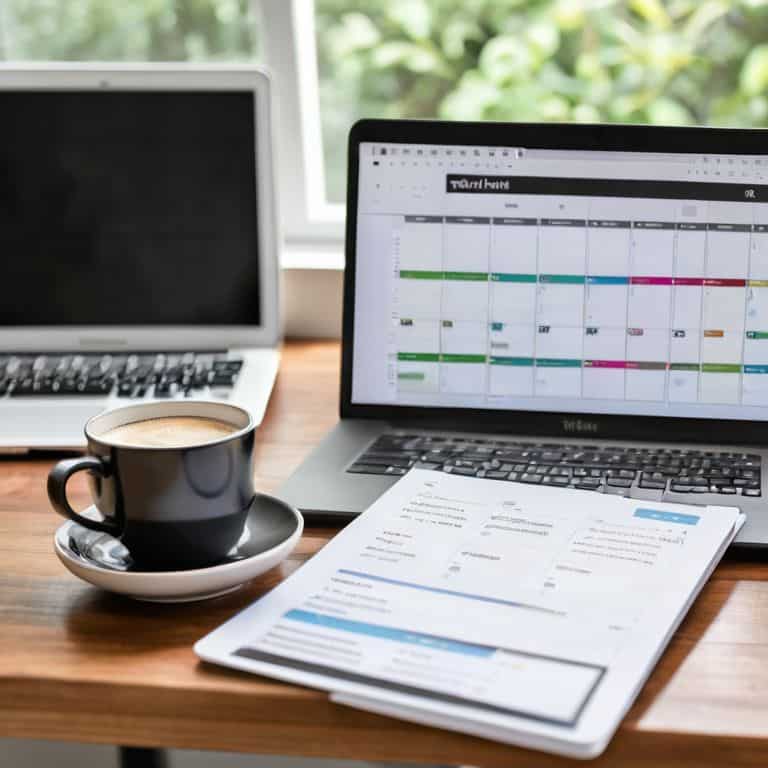
As I dove deeper into the world of automation, I discovered that ifttt recipes for time management can be a total game-changer. By integrating ifttt with my Google Calendar, I can automatically set reminders, schedule events, and even block out focus time. This has been a huge help in reducing distractions and staying on track with my goals. With ifttt, I can also automate routine tasks such as sending emails or notifications, freeing up more time for high-leverage activities.
One of my favorite ways to use ifttt is for email management. I’ve set up applets that automatically sort and prioritize my emails, so I can quickly see what needs my attention. This has been a huge time-saver, and I can focus on more important tasks. I’ve also experimented with ifttt applets for focus enhancement, such as automatically turning off notifications during certain hours of the day or setting up a “do not disturb” mode.
By leveraging ifttt’s capabilities, I’ve been able to streamline my workflow and reduce the amount of time spent on repetitive tasks. Whether it’s automating routine tasks with ifttt or using it for smart home automation, the possibilities are endless. I’m excited to continue exploring the world of automation and finding new ways to work smarter, not harder.
Automating Routine Tasks With Ifttt Recipes
Automating Routine Tasks with IFTTT Recipes
I’ve found that IFTTT recipes are a huge time-saver. By automating routine tasks, I can focus on high-leverage activities. For instance, I use a recipe to automatically save email attachments to my cloud storage, eliminating the need for manual downloads. Another recipe sends me a daily digest of upcoming events, keeping me on track without constant calendar checks.
These recipes have been a game-changer for my productivity. I can customize them to fit my specific needs, ensuring that I’m always working efficiently. By streamlining these routine tasks, I’ve gained more time to focus on strategy and growth, rather than getting bogged down in mundane chores.
Integrating Ifttt With Google Calendar for Time Management
I’ve found that integrating IFTTT with Google Calendar is a total powerhouse for time management. By setting up custom recipes, I can automatically schedule events, set reminders, and even block out focused worktime. For instance, I’ve created a recipe that adds a “Focus Time” event to my Google Calendar whenever I put my phone on “Do Not Disturb” mode, ensuring I’m not interrupted during critical work hours.
This integration has been a game-changer for my productivity, allowing me to prioritize tasks and minimize distractions. With IFTTT and Google Calendar working together, I can effortlessly manage my schedule and make the most of my time. Whether it’s automating routine meetings or scheduling self-care activities, this combination has helped me achieve a better work-life balance and stay on top of my commitments.
5 IFTTT Hacks to Supercharge Your Personal Productivity
- Set up an IFTTT recipe to automatically save email attachments to your cloud storage, freeing up your inbox and making it easier to access important files
- Use IFTTT to schedule social media posts in advance, ensuring a consistent online presence without the hassle of manual posting
- Create an IFTTT applet that sends you a daily summary of your schedule, tasks, and reminders, helping you stay on top of your day
- Automate your smart home devices with IFTTT, adjusting lighting, temperature, and entertainment systems to create a productive environment
- Integrate IFTTT with your favorite task management tool to automatically generate to-do lists, assign tasks, and track progress, streamlining your workflow and reducing stress
Key Takeaways for Boosting Personal Productivity with IFTTT
Ditch repetitive tasks by leveraging IFTTT recipes to automate routine activities, freeing up time for high-leverage work and increasing overall productivity
Integrate IFTTT with Google Calendar to streamline time management, ensuring seamless scheduling and reminders that help you stay on track and make the most of your day
By harnessing the power of IFTTT and its integrations, you can create a personalized productivity system that works for you, not against you, and unlock your full earning potential
Unlocking Productivity Power
The true magic of IFTTT lies not in its ability to automate tasks, but in its power to liberate your mind from the mundane, allowing you to focus on the creative pursuits that bring you fulfillment and drive real success.
Ben Solomon
Unlocking Your Full Potential with IFTTT

In this guide, we’ve explored the power of using IFTTT for personal productivity, from automating routine tasks with IFTTT recipes to integrating it with Google Calendar for seamless time management. By implementing these strategies, you can streamline your workflow and reduce the time spent on repetitive tasks, freeing up more time for high-leverage activities. We’ve also discussed how IFTTT can be used to simplify your digital life, making it easier to manage multiple tools and services from a single platform. Whether you’re a freelancer, entrepreneur, or simply looking to boost your productivity, IFTTT is an incredibly versatile tool that can help you achieve your goals.
As you start to harness the power of IFTTT for personal productivity, remember that the key to unlocking your full potential lies in embracing automation and working smarter, not harder. By leveraging IFTTT and other productivity tools, you can create a system that works for you, not against you. So, don’t be afraid to experiment, try out new recipes, and push the boundaries of what’s possible. With IFTTT on your side, you’ll be amazed at how much more you can accomplish in less time, and how much more fulfilling your work can become when you’re able to focus on the things that truly matter.
Frequently Asked Questions
How can I ensure that my IFTTT recipes are secure and don't compromise my personal data?
To keep your IFTTT recipes secure, I recommend using strong, unique passwords and enabling two-factor authentication for connected accounts. Regularly review your recipes and revoke access to any unused services. I also suggest using IFTTT’s built-in security features, like encryption and secure token storage, to protect your personal data.
Can I use IFTTT to automate tasks across multiple devices and platforms, such as my smartphone and computer?
Absolutely, IFTTT is a master of cross-device automation. I use it to sync my smartphone and computer, automating tasks like saving email attachments to my cloud storage or sending notifications between devices. With IFTTT, you can create custom recipes that work seamlessly across multiple platforms, freeing up your time to focus on what matters.
What are some advanced IFTTT techniques for integrating with other productivity tools, such as Todoist or Trello, to maximize my workflow efficiency?
I’m excited to share my favorite advanced IFTTT techniques, like integrating Todoist with Google Calendar to automate task scheduling, or using Trello with IFTTT to create custom boards for project management – these hacks have been total game-changers for my workflow, and I’m confident they’ll do the same for yours.