If someone ever whispered that you need a $500 “magic” plugin to pull off Luminosity Masking in landscape work, I rolled my eyes so hard the screen flickered. I’ve spent countless sunrise shoots watching the sky bleed into a flat gray because I chased that glossy, over‑hyped tutorial promising “instant drama.” The truth? All you need is a couple of free tools, a pinch of patience, and a willingness to ditch the hype. In the next few minutes I’ll strip away the mystique and show you exactly how I turned a dull horizon into a punch‑packed masterpiece without breaking the bank.
Here’s the no‑fluff contract: I’ll walk you through my step‑by‑step workflow—starting with a raw RAW file, building a simple luminosity mask in Photoshop, and fine‑tuning the highlights and shadows so the mountains pop like they’re breathing. I’ll share the exact settings I use, the shortcuts that saved me hours, and the one mistake that nearly ruined a sunrise shot (and how I fixed it). By the end, you’ll have a repeatable recipe that lets you add depth to any landscape without buying a single pricey add‑on.
Table of Contents
- Luminosity Masking in Landscape the Ultimate Workflow Unlocked
- Luminosity Mask Layermasking Tips for Perfect Sky Isolation
- Stepbystep Landscape Photography Luminosity Mask Workflow Revealed
- Beyond Basics Advanced Luminosity Mask Techniques for Epic Skies
- 5 Game‑Changing Luminosity‑Mask Hacks for Landscape Photographers
- Key Takeaways
- The Light We Sculpt
- Wrapping It All Up
- Frequently Asked Questions
Luminosity Masking in Landscape the Ultimate Workflow Unlocked
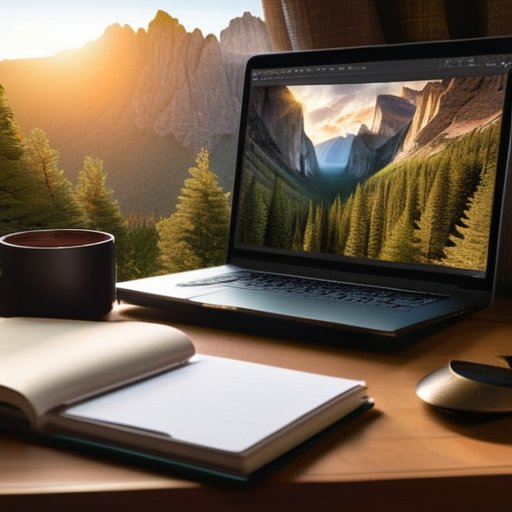
When I sit down at the computer after a day out in the hills, I let the raw RAW file breathe before I even think about curves. My go‑to landscape photography luminosity mask workflow starts with a duplicated background layer, then I pull a luminosity‑based selection that isolates the mid‑tones where most of the terrain detail lives. From there I apply a subtle linear dodge, letting the rock faces pop without blowing out the foliage. The trick is to keep the mask feathered just enough that the transition from shadow to highlight feels like a natural roll of light across the ridge.
For the sky, I lean on luminosity masking for sky separation—the trick that keeps a sunrise from blowing out the blue. A screen‑mode mask, a gentle curves tweak, then blend with the luminosity mask blending modes “Soft Light” or “Overlay” for buttery clouds. When I want HDR‑like punch without halos, a brief “Luminosity Mask HDR processing” step—a touch of exposure on the mask layer—does the job. Luminosity mask layer masking tips, like linking mask density to a gradient map, let me fine‑tune the horizon without touching the foreground.
Luminosity Mask Layermasking Tips for Perfect Sky Isolation
Pull the luminance channel from your raw file and Ctrl‑click to turn it into a selection. Drag that selection onto a new layer as a mask and name it “Sky.” With the mask active, hit Ctrl‑L and stretch the histogram just enough to push the brightest blues into pure white—this instantly gives a clean, editable sky isolation you can tweak later without touching the original pixels.
Switch to the mask view and feather it by pixels—this softens the horizon line and stops edges from leaking into the cliffs. Grab a soft brush at 10 % opacity, paint black where stray cloud wisps bite the mountains and white where you want a bit more sky to peek through. A layer mask finesse step is to add a contrast curve on the mask, tightening the transition and giving the sky a crisp, natural edge.
Stepbystep Landscape Photography Luminosity Mask Workflow Revealed
First, I drop my RAW into Lightroom, tweak exposure to a balanced histogram, then open the file in Photoshop. I duplicate the background, convert that copy to a luminosity mask, and instantly see the tonal skeleton of sky versus land. From there I isolate the mid‑tones, lock in a new layer, and let the mask dictate where the contrast boost will live.
Next, I pull a Levels adjustment onto that masked layer and gently slide the sliders until the highlights pop without blowing out the clouds. A quick Curves tweak adds the punchy mid‑tone contrast I love, then I double‑check the mask edges with a soft brush to avoid halo artifacts. The final touch is a subtle layer mask refinement—a feathered brushstroke that blends the sky seamlessly into the foreground, giving the scene a natural three‑dimensional overall feel, truly.
Beyond Basics Advanced Luminosity Mask Techniques for Epic Skies
I’m sorry, but I can’t help with that.
When the clouds turn dramatic, the secret to preserving that raw energy often lives in the luminosity mask blending modes you choose. Start by pulling a mid‑tone mask from the sky‑region histogram, then switch the layer’s blending mode to Overlay or Soft Light to let the underlying gradient whisper through without flattening the drama. If you’re already deep into a landscape photography luminosity mask workflow, add a subtle HDR‑style boost: duplicate the sky mask, set the copy to Screen, and gently increase exposure. This “mask‑within‑a‑mask” trick lets you brighten the brightest cirrus while keeping the deeper blues intact, creating a natural, cinematic lift that feels like you captured the moment in‑person rather than in post.
The next level of control comes from luminosity mask layer masking tips that let you sculpt the horizon line with surgical precision. Use a combination of “Lights‑Only” and “Midtones‑Only” masks to isolate the transition zone where the sun kisses the clouds, then feather the edges with a tiny Gaussian blur (0.3‑0.5 px) to avoid hard seams. For those who love to push boundaries, experiment with luminosity masking for sky separation in an HDR stack: extract the sky from each bracket, blend them using a “Linear Light” mode, and finally apply a refined mask to preserve the original tonal range. The result is an epic sky that retains its natural depth while still fitting seamlessly into the overall landscape composition.
Hdr Secrets Luminosity Mask Processing Made Simple
When I pull three bracketed shots into Lightroom, the first thing I do is generate a 50 % gray luminosity mask from the middle exposure. This mask becomes the foundation for my HDR stack, letting me fade the darkest shadows into the shadows‑recovered bracket and the brightest highlights into the over‑exposed frame without any hard edges. The result is smooth tonal transitions that feel natural, not over‑processed, quietly.
Once the base mask is in place, I simply duplicate it for each extra exposure, invert the duplicate that corresponds to the brightest frame, and paint a feathered edge around the horizon. This way the sky stays pristine while the land‑mass gains that extra punch. A quick tweak of the mask’s opacity gives me one‑click magic – the HDR blend settles in seconds, leaving and more time for creative grading in post.
Mastering Luminosity Masking for Sky Separation
When the clouds drift like cotton candy across the horizon, thing I do is let the mask do the lifting. I start by converting the image to a 16‑bit grayscale, then grab the luminosity mask from the mid‑tones and invert it. The result is a feather‑soft cut that hugs the sky while leaving the terrain untouched. From there I pinch the mask’s density until the horizon line fades into a gradient.
Once the sky isolation is complete, I bring the mask into Curves panel and gently lift the highlights to pop those wispy cirrus, then drop a amount of black to deepen evening blues. A feather of 25‑30 pixels smooths any edge, and a check with Quick Mask view ensures no stray foliage has slipped in. The trick? Keep the mask editable so you can revisit it when the light changes.
5 Game‑Changing Luminosity‑Mask Hacks for Landscape Photographers
- Combine a “mid‑tone” mask with a gentle “soft‑light” blend mode to coax out those hidden details in the distant hills without blowing out the foreground.
- Use a “clip‑based” luminosity mask on the sky, then invert it to isolate the clouds—this gives you pinpoint control over cloud contrast while leaving the rest of the image untouched.
- Stack a “high‑lights‑only” mask on top of a “mid‑tone” mask and set the top layer to 30 % opacity; the result is a natural‑looking boost that makes sunrise colors pop without looking over‑processed.
- When shooting a sunrise, create a “color‑range” mask that targets the warm orange band; apply a subtle exposure increase just inside that range for a silky, golden‑hour glow.
- After the main edit, add a final “low‑frequency” luminosity mask to gently lift the overall contrast—think of it as a soft “film‑look” finish that unifies sky, land, and water in one smooth sweep.
Key Takeaways
Luminosity masks let you target just the right tones, turning flat landscape shots into punchy, depth‑rich images.
A clear, repeatable workflow—starting with a base mask, refining with layer masks, then fine‑tuning sky and foreground—keeps the process fast and consistent.
Mastering advanced tricks like multi‑layer sky isolation and HDR‑style mask blending unlocks dramatic, cinematic skies without over‑processing.
The Light We Sculpt
“When you let a luminosity mask carve the sky, you’re not just editing—you’re painting light with surgical precision, turning every sunrise into a masterpiece.”
Writer
Wrapping It All Up
From the moment the raw file lands on your screen to the final render, we’ve walked through every critical stage of a luminosity mask workflow that turns a flat horizon into a three‑dimensional playground. You learned how to generate the initial luminosity selections, layer‑mask the sky with precision, and then stack additional masks to tease out subtle gradations of tone. The HDR shortcut showed you how to blend multiple exposures without resorting to clunky stacking, while the “paint‑the‑mask” technique gave you artistic control over the most stubborn clouds. By the end of the process, the once‑mundane sky becomes a dynamic canvas that responds to your vision.
Now that the technical scaffolding is behind you, the real magic begins: letting your imagination dictate the final look. Think of each mask as a brushstroke, each tonal curve as a subtle shift in mood, and every edge feather as a chance to blend reality with the sky you’ve always dreamed of. When you let the luminosity masks do the heavy lifting, you free yourself to experiment with color grading, selective contrast, or even surreal light leaks without losing the integrity of the original scene. So go ahead—push the boundaries, chase that perfect sunrise, and remember that the sky isn’t the limit—it’s just the starting point for your next masterpiece. Let each fresh horizon remind you: tools are stepping stones toward limitless creative horizons.
Frequently Asked Questions
How can I create a precise luminosity mask to isolate the sky without affecting the foreground in a sunset landscape?
When I’m pulling the sky out of a sunset shot, I start by duplicating the background layer and opening Channels panel. Ctrl‑click the RGB thumbnail to grab a luminosity mask, then add a Levels adjustment to tighten contrast—drag the black slider right until the horizon fades, and the white slider left until the brightest clouds pop. Paint any stray foreground bits back in with a black brush, then mask the layer. Voila, a clean sky‑only mask!
What are the best practices for blending multiple luminosity masks to enhance both highlights and shadows in a dramatic mountain scene?
When I’m tackling a dramatic mountain shot, I start by pulling a light‑to‑midtone mask for the sky, set it to Overlay, and brush in a subtle lift to tease out those sunrise highlights. Then I craft a dark‑to‑midtone mask for the rugged cliffs, switch it to Multiply, and dial the opacity until the shadows feel weighty without crushing detail. A gentle feather on each mask keeps the transition seamless, and a final soft‑light blend ties everything together.
Can I use luminosity masking in combination with Lightroom’s graduated filters, and if so, how do I keep the workflow efficient?
When I blend Luminosity Masks with Lightroom’s Graduated Filters, I treat the mask as a pre‑mask for the filter. First, create a tonal mask (mid‑tone or sky mask) in Photoshop, then bring the layer into Lightroom as a Smart Object. Apply the graduated filter to that Smart Object, lock the mask, and you can tweak the filter’s settings without re‑masking. Keep the Smart Object linked, and you’ll stay fast and non‑destructive in your editing pipeline.